
PortalJS Setup – Quick Start Guide for Developers
Welcome to the PortalJS documentation!
If you have questions about anything related to PortalJS, you're always welcome to ask our community on GitHub Discussions or on our chat channel on Discord.
Prefer the AI-native path?
The fastest way to build a PortalJS portal is to describe it to your AI assistant and let the agentic skills do the assembly — see the Quickstart. The manual guide below still works and is a good reference for how everything fits together.
Setup
Prerequisites
- Node.js 22 LTS (recommended) or Node.js 24
- MacOS, Windows (including WSL), and Linux are supported
Create a PortalJS app
To create a PortalJS app, open your terminal, cd into the directory you’d like to create the app in, and run:
npm create portaljs@latest my-data-portal
This scaffolds a portal from the official template. (Or grab the bare template with no prompts: npx tiged datopian/portaljs/examples/portaljs-catalog my-data-portal.)
TipPortalJS is built on Next.js + React + Tailwind, so everything the scaffolder writes is plain, editable code — anything you can do with Next.js, you can do with PortalJS.
Run the development server
You now have a new directory called my-data-portal. Let’s cd into it and then run the following command:
npm run dev
This starts the NextJS (and hence PortalJS) "development server" on port 3000.
Let's check it's working and what we have! Open http://localhost:3000 from your browser.
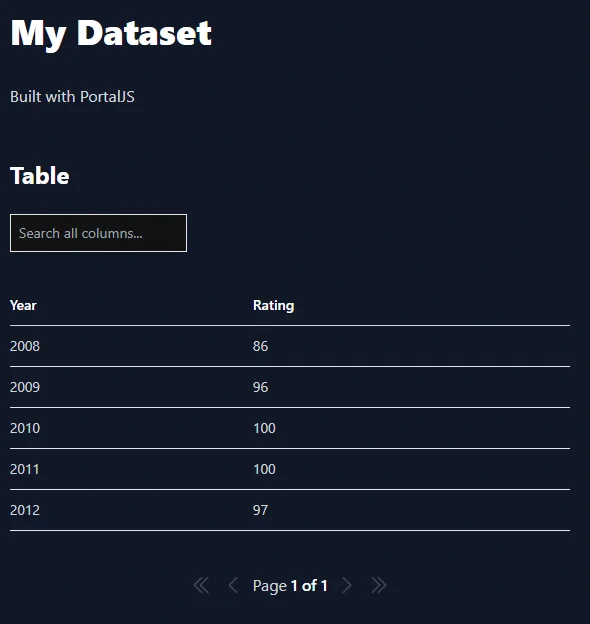
You should see a page like this when you access http://localhost:3000. This is the starter template page which shows the most simple data portal you could have: a simple README plus csv file.
Editing the Page
Let’s try editing the starter page.
- Make sure the development server is still running.
- Open content/index.md with your text editor.
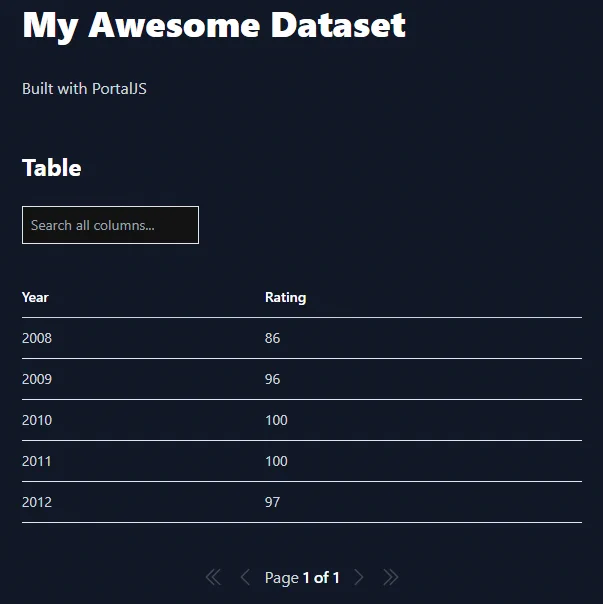
- Find the text that says “My Dataset” and change it to “My Awesome Dataset”.
- Save the file.
After refreshing the page, you should see the new text:
Congratulations! The app is up and running and you learned how to edit a page. In the next lesson, you are going to learn how to create new datasets.